Player guide
Everything you need to get started on Vaultcraft. Read the first section now; open the rest only when you need it.
Connect your Vaultcraft account
Sign in with Discord to make this Guide aware of your admission progress and member tools.
Guide contents
Your first hour
You do not need to learn every system before you play. Do these in order and pick up the rest as you go.
- ConnectJoin play.vaultcraft.org and look around Spawn.
- Sign inLog in with Discord and verify your Minecraft account.
- ApplyComplete the short website interview.
- Read the rulesKnow the essentials before a big project.
- Open the mapSee what is already built around you.
- PlayPick a direction, build, and learn deeper systems later.
Your checklist
Where to gather
The Main World is permanent, so heavy gathering belongs elsewhere.
Check the resource worlds first.
Use renewable gathering areas when practical.
Build in the Main World and leave room around neighbours.
Open the map or ask Meridian before digging up a permanent area.
Joining Vaultcraft
Join, verify, apply, and get into the world.
Welcome to VaultcraftA long-term Java survival server built around one permanent world. Minecraft comes first; the custom systems add depth as you need them.
How to start
- Connect whenever you are ready.
- Learn the basics at Spawn.
- Use this Guide only when you run into something new.
Good to know
- You do not need to master the economy, Charms, Reputation, Events, or every custom feature before playing.
- The Main World is intended to keep its history instead of being discarded on a short reset cycle.
If something goes wrong
If a Vaultcraft feature feels unfamiliar, search this Guide or Ask Meridian instead of guessing.
Your Vaultcraft AccountYour website login connects Discord, Minecraft verification, applications, support, voting, and member features into one player identity.
How to start
- Choose Log in on the website.
- Sign in with Discord.
- Verify the Minecraft Java account you actually use on Vaultcraft.
Good to know
- Your Minecraft username by itself is never proof that you own the account.
- My Vaultcraft becomes the member home once your account and access are established.
If something goes wrong
Use Vaultcraft Help if Discord or Minecraft is linked to the wrong Vaultcraft account.
Connect NowYou can connect to play.vaultcraft.org before the application is finished and look around the restricted Spawn onboarding area.
How to start
- Open Minecraft: Java Edition.
- Add play.vaultcraft.org as the server address.
- Join and explore the onboarding area while you finish admission.
Good to know
- Limited access protects the permanent world until your admission is complete.
- Approval unlocks the wider server; you do not need a separate server address.
If something goes wrong
If you can connect but cannot leave Spawn, check your application and Minecraft verification status on /join.
Verify MinecraftVerify from inside Vaultcraft. Meridian binds a short-lived code to the exact Java UUID and accepts it only from that connected Minecraft account.
How to start
- On /join, choose Verify Minecraft in game.
- Enter the Java username you intend to link so Meridian can resolve its canonical UUID.
- Join play.vaultcraft.org on that exact Java account and submit the one-time /verify code shown by Meridian.
Good to know
- Typing a username does not prove ownership; the connected server account must match the resolved Java UUID.
- Verification codes expire and are single-use.
- The website uses Discord sign-in only; verify Minecraft directly inside Vaultcraft with a single-use code.
- Once ownership succeeds, /join should continue to the next application step automatically.
If something goes wrong
If Minecraft verification succeeds in game but the website does not advance, keep /join open for a moment, refresh once, then open Vaultcraft Help with the code omitted from your report.
Application & InterviewApplications and the adaptive interview are completed on the Vaultcraft website. The path can change based on your answers.
How to start
- Sign in and verify Minecraft first.
- Start the application from /join.
- Answer each player-facing interview question normally; Meridian advances the interview until it is complete.
- Return to /join to see the result and access state.
Good to know
- There is no second in-game interview after the website interview.
- The interview is short. Most players answer around a dozen questions and it never runs past 30; unclear results go to a staff member instead of more questions.
- The application page is the canonical place to see your current admission progress.
If something goes wrong
If an interview is interrupted, return to /join/interview. If it cannot resume, use Vaultcraft Help instead of starting duplicate accounts.
Exploring the world
Spawn, Capital, resource worlds, map, and transportation.
The Permanent Main WorldThe Main World is where homes, towns, businesses, roads, railways, farms, monuments, and years of server history live.
How to start
- Use the Live Map before choosing a large project area.
- Leave room around established builds and settlements.
- Use renewable Resource Worlds for destructive bulk gathering when practical.
Good to know
- The world is meant to accumulate history, so location and shared infrastructure matter.
- A quiet area is not necessarily abandoned; check nearby projects before expanding into them.
If something goes wrong
If you are unsure whether an area is available, ask the nearby players/community before committing a large build.
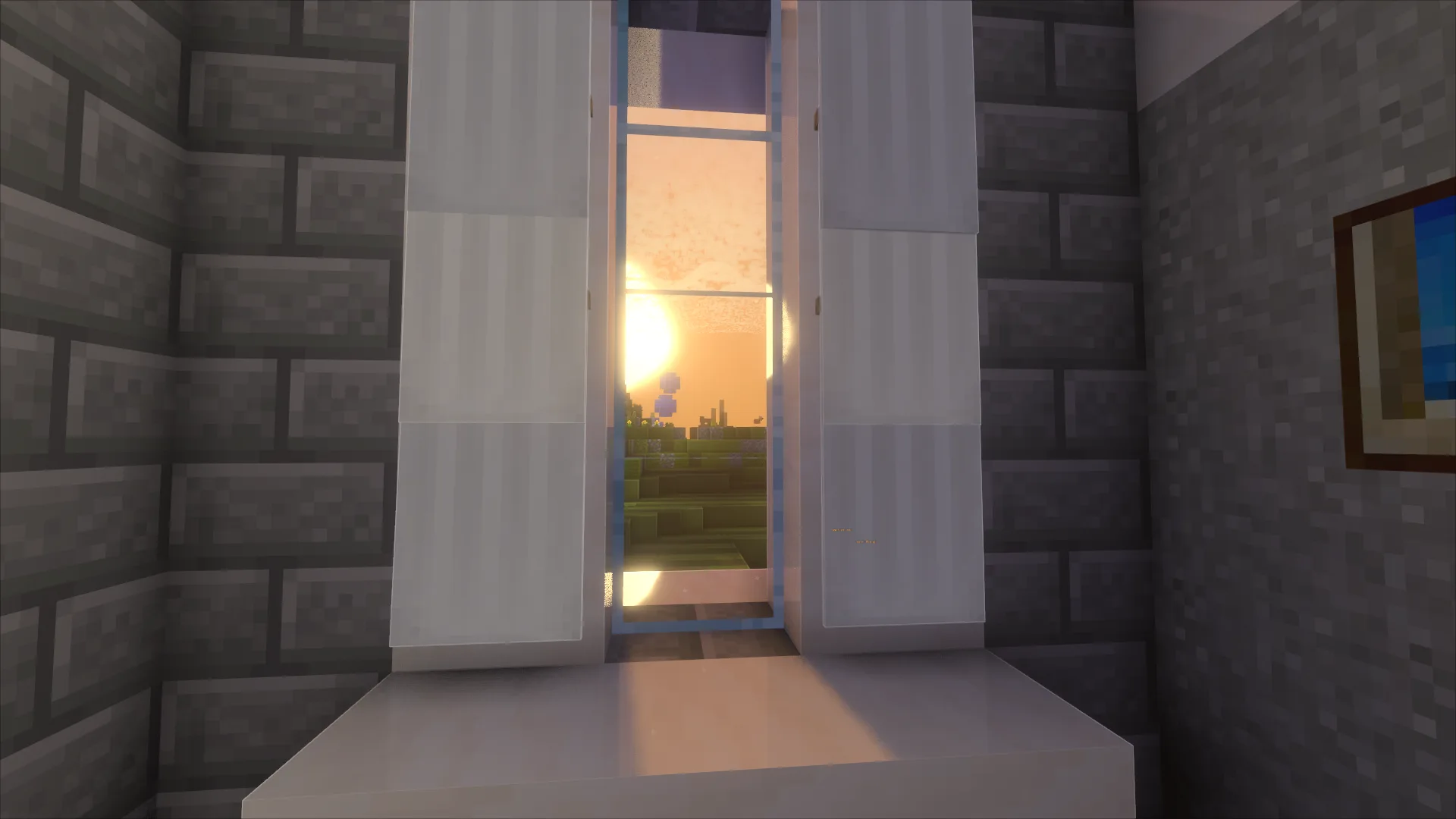
SpawnSpawn is Vaultcraft's main arrival point and onboarding landmark at 17 / 138 / -61.
How to start
- Look around before leaving.
- Use Spawn as the starting point for the Guide, rules, map, and application flow.
Good to know
- Players who have not completed admission remain in the restricted Spawn access area.
- Spawn is a landmark, not a disposable starter zone.
If something goes wrong
If you are repeatedly returned to Spawn, check whether full world access has actually been unlocked on /join.
Related
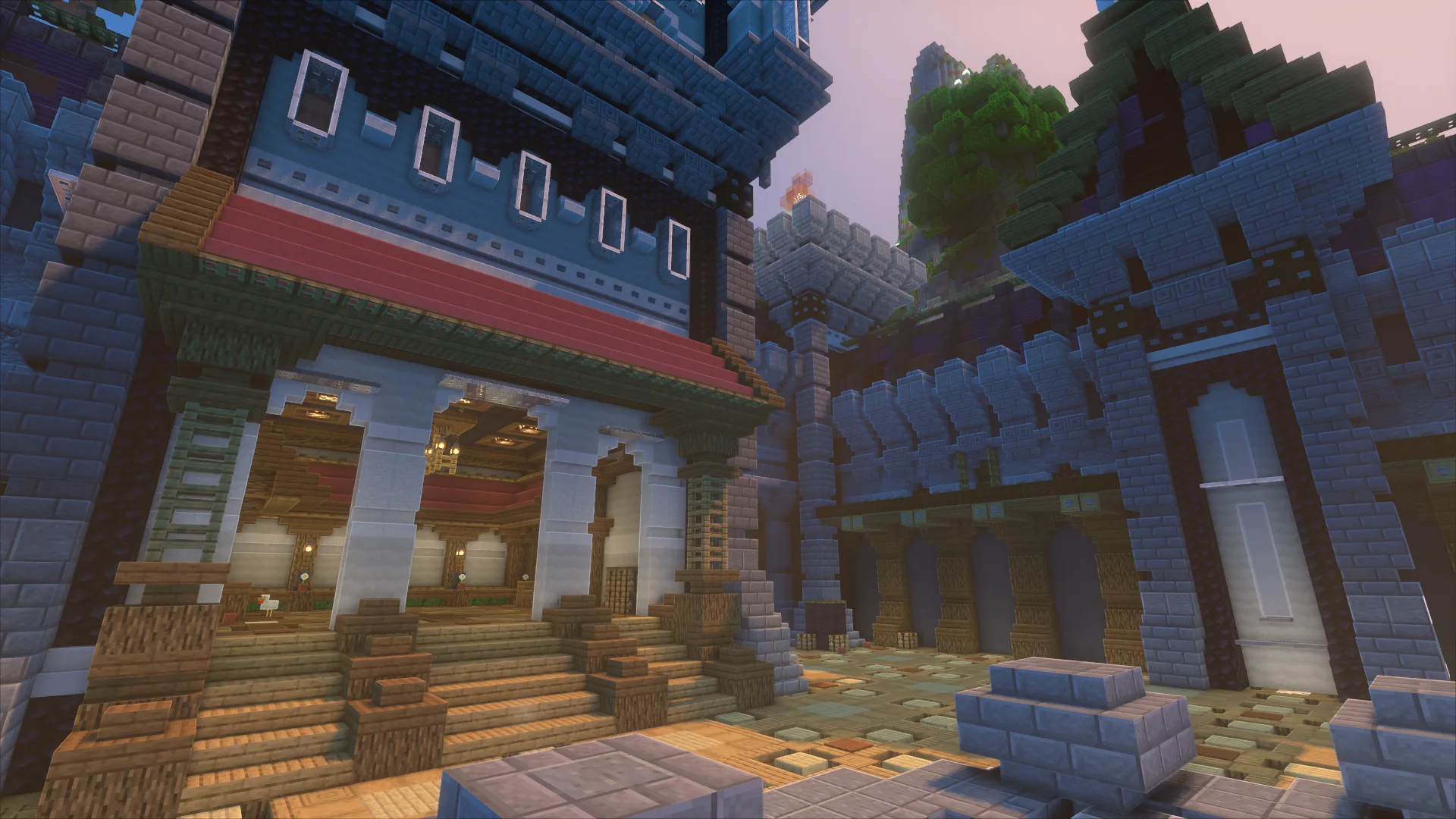
The CapitalThe Capital is Vaultcraft's civic center, with public buildings, services, infrastructure, history, and places to explore.
How to start
- Explore on foot first.
- Use the map and public routes to understand the district.
- If you want to use Elytra inside the Capital, use the Flight Permit system.
Good to know
- Special rules apply in the Capital, especially flight restrictions.
- Public buildings and infrastructure are part of the server's permanent shared environment.
If something goes wrong
If your Elytra is restricted, do not keep trying to bypass it; check the Flight Permits section and current permit state.
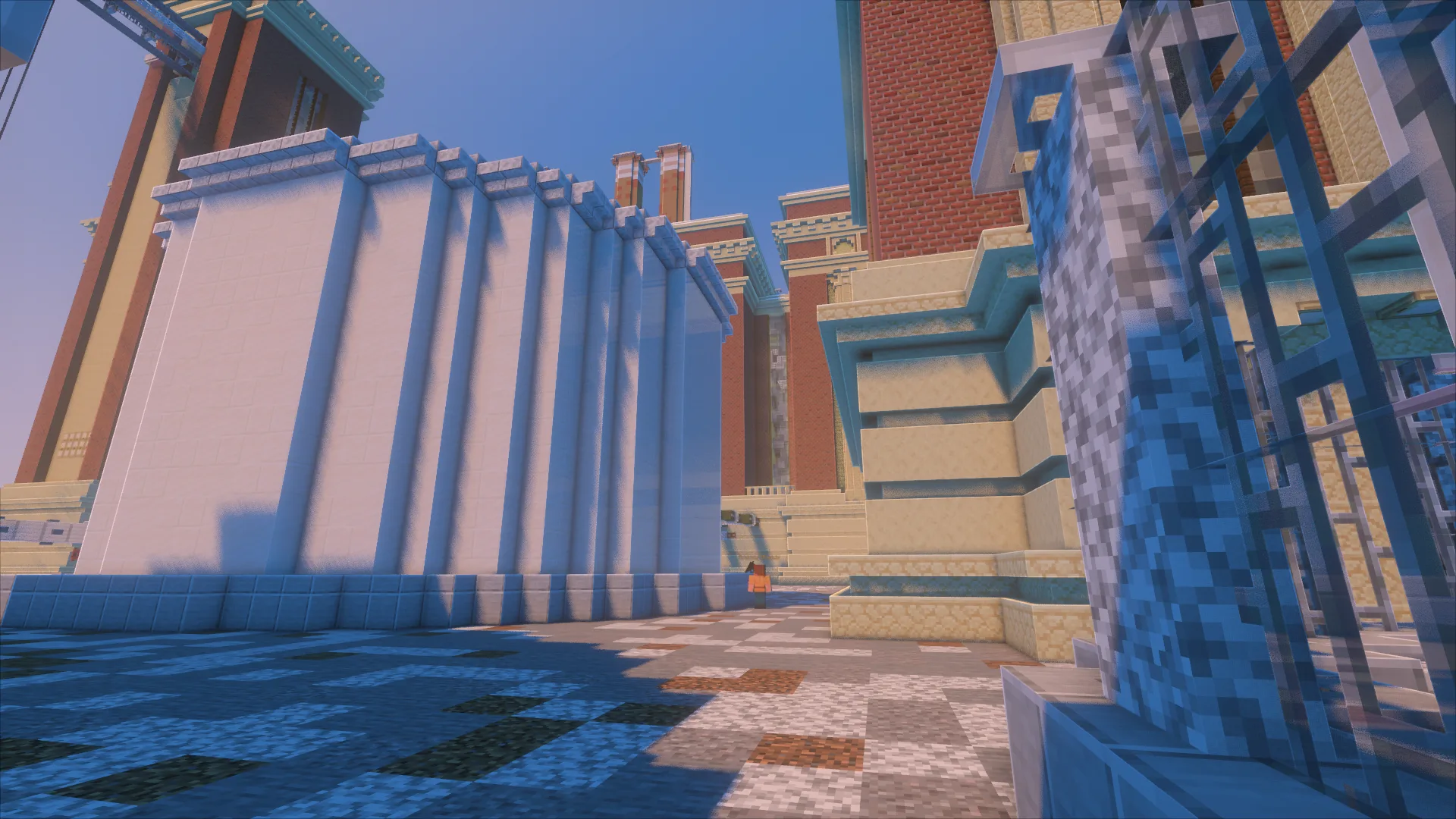
Resource WorldsRenewable gathering spaces protect the permanent Main World from industrial-scale mining and material harvesting.
How to start
- Use them for large mining trips, sand, stone, terrain blocks, and other destructive gathering.
- Bring what you need for bulk collection and return building materials to the Main World.
Good to know
- Normal exploration and permanent builds belong in the Main World.
- Resource Worlds are the first place to check when your project needs thousands of replaceable blocks.
If something goes wrong
If you are not sure whether a material should be gathered in the Main World, choose the Resource Worlds for bulk/destructive collection.
The BackroomsA separate hostile brick-labyrinth expedition reached through supported sewer entrances when enabled.
How to start
- Look for announced access routes and read the expedition rules.
- Bring only the gear permitted by the current expedition system.
- Seek special maps and event-specific loot inside the dimension.
Good to know
- Backrooms mechanics, enemy encounters, rewards and the three-map escape are being expanded and must be confirmed in game.
- The permanent Main World is not reset for Backrooms testing.
If something goes wrong
If you are trapped, use Help and tell staff your last coordinates, inventory state and game mode.
NetherThe Nether is both a resource space and a major transportation network with portals, tunnels, hubs, and player-built routes.
How to start
- Follow established paths when they help you.
- Respect portals, tunnels, signage, hubs, and shared routes.
Good to know
- Shared Nether infrastructure should be treated like another player's build even when nobody is nearby.
If something goes wrong
Coordinate before rerouting or removing a connection that other players may rely on.
The EndThe End is available for exploration and resources while established access routes remain shared infrastructure.
How to start
- Use established gateways/routes where appropriate.
- Explore outward without damaging shared access.
Good to know
- Treat permanent End infrastructure with the same care as Nether infrastructure.
If something goes wrong
If a route or public structure appears damaged, report it instead of rebuilding it blindly.
CreativeWhen available, Creative areas are for planning, prototyping, and experimenting before committing survival resources.
How to start
- Use Creative to test palettes, redstone, layouts, or large builds.
- Rebuild finished ideas through normal survival progression in the Main World.
Good to know
- Creative is a planning tool, not a replacement for survival progression.
If something goes wrong
Check current world availability in Meridian if a Creative area is temporarily closed.
Live MapUse the live map to find settlements, public infrastructure, landmarks, routes, and space for a future project.
How to start
- Open /map before starting a major build.
- Compare nearby projects and transportation.
- Use location cards on /world for important public places.
Good to know
- The map is one of the easiest ways to avoid accidentally building directly into an established project.
If something goes wrong
If the map is unavailable, check /status before assuming your browser is the problem.
TransportationRoads, railways, Nether routes, paths, portals, and other public connections are community infrastructure.
How to start
- Use existing routes when convenient.
- Ask before making major changes to shared infrastructure.
Good to know
- Infrastructure may serve players and settlements far beyond the area you can currently see.
If something goes wrong
Report broken public routes through Help or the appropriate community channel with coordinates/screenshots.
Progression
Charms, Reputation, Artifacts, Collections, Events, and Prestige.
ReputationReputation is long-term Vaultcraft progression tied to supported participation, ranks, titles, milestones, and player history.
How to start
- Play normally and participate in supported activities.
- Use the Reputation profile to see current progress and the next milestone when available.
Good to know
- Reputation is not something a new player needs to grind immediately.
- Current rank/progress is live player data, so the Guide does not guess it.
If something goes wrong
If your Reputation UI or progress looks stale, capture the current profile state and report it through Help.
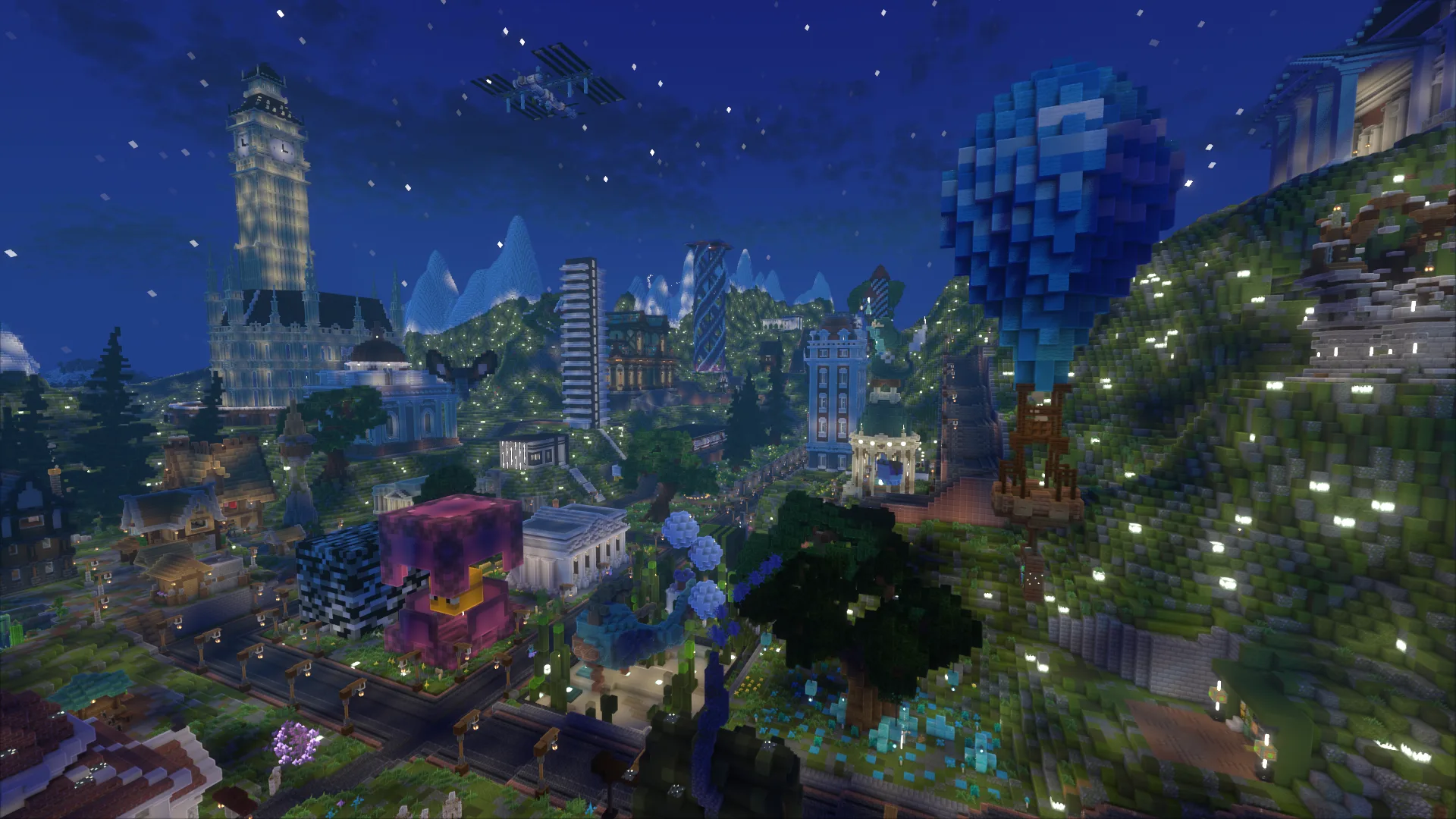
CharmsCharms are collectible abilities covering movement, gathering, survival, combat, storage, fortune, and utility.
How to start
- Use the Charm interface/Exchange to discover available Charms and live acquisition costs.
- Keep your Charm Satchel with you when using the system.
- Learn one Charm at a time instead of trying to memorize the entire catalog.
Good to know
- The current catalog reaches #052 Clockwork.
- Examples include Arrow, Totem Regenerator, Magnet, Builder's, Rocket, Pearl, Windrunner, Voidstep, Phoenix, Ender Chest, Shulkerlink, and Clockwork.
- Acquisition and live quotes shown in the in-game Charm UI take precedence over static Guide examples.
If something goes wrong
If a Charm effect, Satchel state, Attunement, Fusion, or Clockwork rotation does not behave as described, treat it as a possible live bug and report the exact Charm number.
Related
Charm SatchelThe Satchel stores your Charms. Server-side abilities can still function without the companion UI; managing the native Satchel screen needs the matching Vaultcraft Client.
How to start
- Keep the Satchel in your inventory when using Charms.
- Use the matching /client build for the native Satchel UI; do not repeatedly click or replace a Satchel if its menu fails.
Good to know
- Important owner/progression state is designed to survive rebuild/recovery logic.
- The Satchel is intended to become permanent Vaultcraft equipment rather than a disposable container.
If something goes wrong
If the Satchel will not open or appears to lose state, stop repeatedly rebuilding it and send a Help report with a screenshot.
Related
AttunementAttunement is deeper Charm progression that grows as your Charm collection and long-term use develop.
How to start
- Build your Charm collection and follow the Satchel's progression interface.
Good to know
- Higher progression can unlock additional appearances and longer-term Charm rewards.
If something goes wrong
Use the live Satchel/profile value as authoritative if a static example differs.
MasteryMastery extends the Charm progression path for players who have moved beyond the early collection experience.
How to start
- Progress through the Charm ecosystem first; Mastery becomes relevant later.
Good to know
- It is deliberately not an onboarding requirement.
If something goes wrong
If Mastery appears before the prerequisites you expect, use the in-game progression UI as the source of truth and report inconsistencies.
Resonance & FusionResonance and Fusion are advanced Charm progression layers used after the basic collection/Attunement experience.
How to start
- Follow the current Satchel UI when these systems unlock for you.
Good to know
- These systems are intentionally advanced and can evolve as the Charm implementation changes.
If something goes wrong
Do not spend or combine valuable progression resources based on old screenshots; use the current in-game confirmation text.
ArtifactsArtifacts are special Vaultcraft items with their own progression or abilities and exist alongside Charms rather than replacing them.
How to start
- Read an Artifact's current name/lore/interface before treating it like an ordinary item.
- Use the related progression UI when an Artifact exposes one.
Good to know
- Some Artifacts are practical tools; others are collection or long-term progression pieces.
If something goes wrong
Report missing lore, broken actions, or state loss with the exact Artifact name and screenshot.
CollectionsCollections track unusual items, rewards, appearances, and progression pieces where completing the set is part of the goal.
How to start
- Collect naturally as you explore other Vaultcraft systems.
- Check collection progress when you want a longer-term goal.
Good to know
- The strongest item is not always the point; completion itself is progression.
If something goes wrong
If a collection item fails to register, keep the item and report the exact collection entry rather than discarding it.
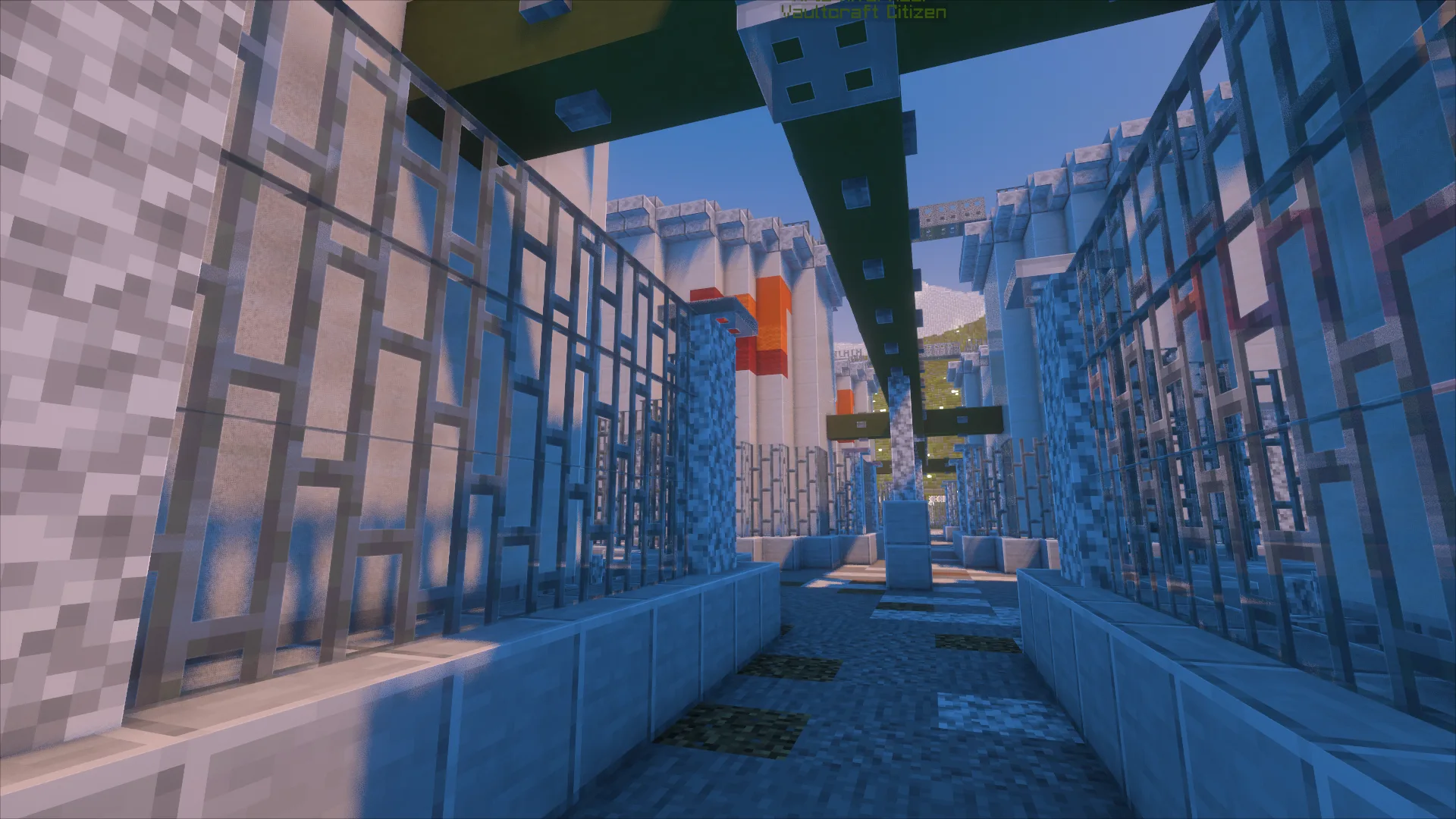
EventsVaultcraft Events are temporary shared activities with queues, generated spaces, objectives, unusual mechanics, rewards, and cleanup.
How to start
- Watch the event page and in-game warnings for a real announced event.
- Join during the queue/entry window.
- Follow the event-specific objective and temporary rules shown in game.
Good to know
- Events replaced the older single-purpose Miner's Paradise framing.
- Possible mini-events include TNT Rain, Tunnel Miner, Treasure Rain, Motherlode, Hazard Swap, Comet Strike, Shrine of Fortune, Vein Vision, Gravity Flip, Golem Frenzy, and Lucky Blocks.
- Some events use a separate dimension so destructive mechanics cannot damage normal player builds.
- Exact schedules/rewards are live data and are shown on /events when actually published.
If something goes wrong
If an event fails to teleport, restore, reward, or clean up correctly, report the event name/time and what state you were left in.
Related
Calendar & SeasonsVaultcraft's evolving calendar is intended to tie festivals, weather and seasonal events to one schedule.
How to start
- Visit /events for events staff have actually announced.
- Watch in-game seasonal notices for available activities.
Good to know
- Halloween, other holidays and season dates are scheduled by the actual Vaultcraft event system, not automatically inferred from real-world holidays.
- Features still in rollout may not appear on every server build.
If something goes wrong
If a listed active event does not work, report the announcement and your in-game state.
PrestigePrestige is late-game progression for players who have already spent significant time advancing through Vaultcraft.
How to start
- Ignore Prestige when you are new.
- Return when the normal progression path makes it relevant.
Good to know
- It exists to give long-term players goals beyond early progression.
If something goes wrong
Current eligibility should come from the live progression interface, not an old rank screenshot.
Economy
Prices, shops, VCSE, Bank, Exchange, Insurance, and Drafts.
DiamondsDiamonds remain the familiar player-facing unit of value for trading, shops, permits, progression costs, and parts of the Vaultcraft economy.
How to start
- Treat physical diamonds as meaningful currency in normal player trade.
- Use the Price Index before listing or buying indexed goods.
Good to know
- Vaultcraft adds larger financial systems without making ordinary Minecraft trading irrelevant.
If something goes wrong
If a system quotes a value you do not understand, check the relevant live interface before confirming the transaction.
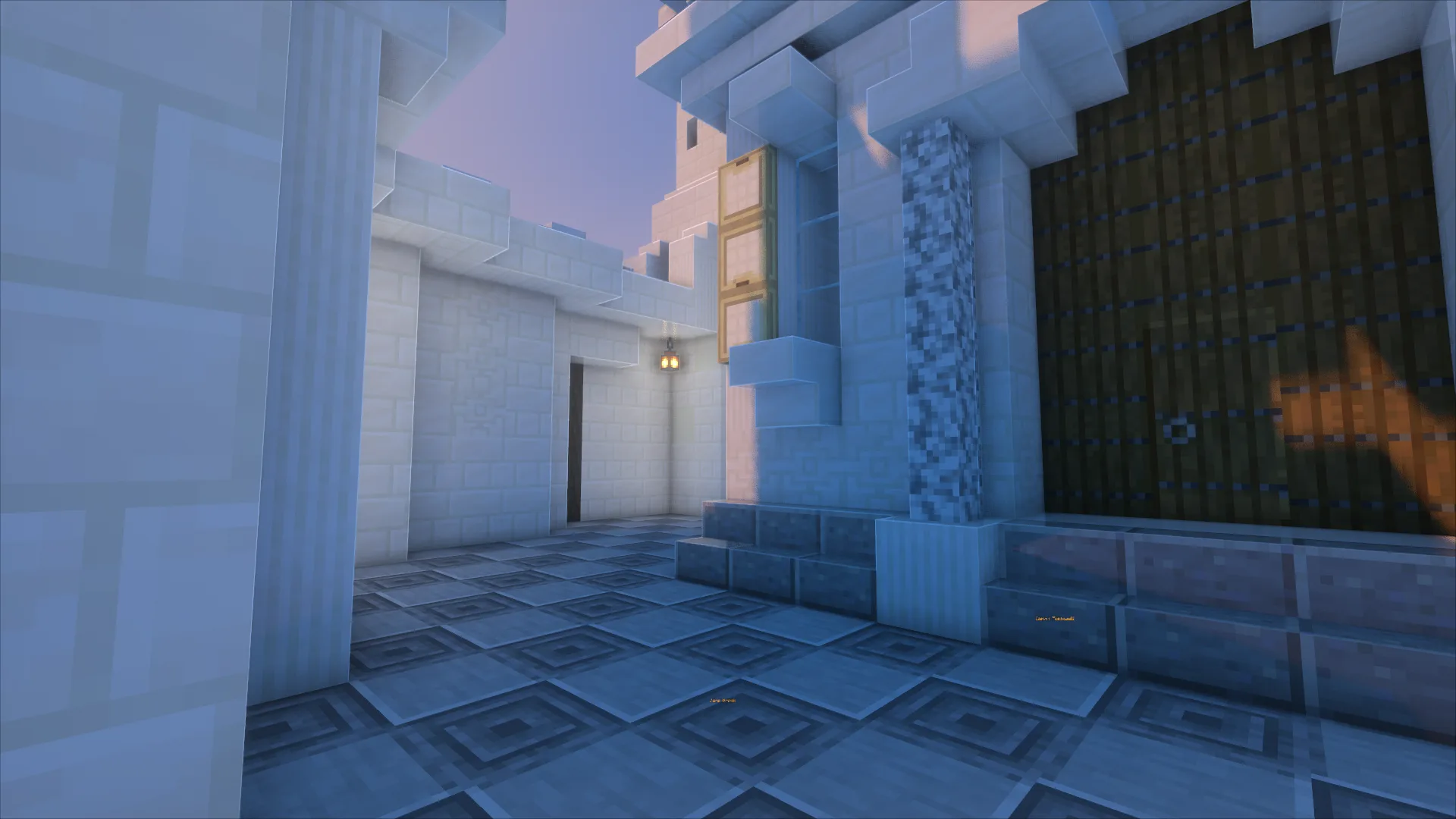
Price IndexThe Price Index contains the current player-visible Minecraft item catalog and the minimum legal sale price for each listed item.
How to start
- Open /price-index.
- Search the real Minecraft item name or registry ID.
- Use the displayed value as the minimum price; you may charge more.
Good to know
- The catalog displays its verified Minecraft data version; new server updates can temporarily show the previous version until the registry passes checks.
- Operator-only, unobtainable, restricted, spawn-egg, internal, and explicitly non-traded entries stay out of the public catalog.
- Bundles, coupons, giveaways, or similar workarounds cannot be used to evade an applicable item floor.
- Services are handled separately from item-floor pricing.
If something goes wrong
If a legitimate tradable Minecraft item is missing, search by its minecraft: registry ID and report it through Help so the catalog sync can be checked.
Related
Player ShopsPlayers can run businesses for resources, building materials, rare goods, crafted products, and services.
How to start
- Choose what you want to sell.
- Check the Price Index for indexed item floors.
- Make the shop easy for other players to understand and use.
Good to know
- Player-to-player trade remains important; automated systems are not meant to replace every shop.
- Services and custom work may not map directly to an item price floor.
If something goes wrong
When unsure whether a deal complies with current economy rules, ask before advertising it.
VCSE & StocksThe Vaultcraft Stock Exchange adds share-style holdings and a portfolio layer on top of the Minecraft item economy.
How to start
- Open the current market interface.
- Review a company/stock before buying shares.
- Use your portfolio to follow owned positions.
Good to know
- Stock values can move, so a share purchase is different from buying a fixed-price item.
- VCSE is optional; you never need stocks just to play Vaultcraft.
- Live prices, share counts, reserve state, and market direction can change and should come from the current interface.
If something goes wrong
If Buy Items, Buy Shulker, a stock link, shares, or portfolio ownership fails to update, treat it as a live-system problem and report the exact screen/action.
Related
BankThe Bank includes wallet and account management; the modern Bank 2.0 native interface is being tested.
How to start
- Use ordinary diamonds/player trading first.
- When enabled, use the Bank interface for deposits, withdrawals, transfers, transaction history, savings and shares; check available features before moving funds.
Good to know
- Banking works alongside physical diamonds rather than erasing them.
- Fees, reserve values, taxes, and other live parameters can change; the live interface is authoritative.
If something goes wrong
Never rely on an old screenshot for a fee or balance-sensitive transaction.
Sell Wand & SelfSellThe Sell Wand exchanges eligible inventory contents into diamonds when the system is enabled.
How to start
- Use the current Sell Wand menu on eligible inventory items.
- Review fee and excluded-item rules before confirming.
- Enable SelfSell only through its opt-in interface when available.
Good to know
- The intended item-sale fee is 3% and sold items are consumed.
- SelfSell is an opt-in timed mode, not an always-on player tax.
- If these options are not visible, they may still be under live integration testing.
If something goes wrong
If items vanish without balance credit, stop using the wand and report the transaction and time.
Custom SpawnersSpecial spawners belong to the Vaultcraft economy and are not normal vanilla craftable items.
How to start
- Check the currently enabled VCSE/Shop listings.
- Review restrictions, price and placement rules before purchase.
Good to know
- Spawner availability and prices are server-controlled and may change during testing.
- Never assume a disabled, restricted, or unobtainable spawn egg can be bought.
If something goes wrong
If the spawner does not place or function, preserve the item and open Help.
ExchangeThe Exchange provides configured item/value opportunities and rotating offers rather than one permanent menu of identical deals.
How to start
- Check the current Exchange rotation when you are interested in an offer.
- Review the displayed item, amount, and cost before confirming.
Good to know
- Offers can change; do not assume an old rotation is still available.
If something goes wrong
If the displayed offer and delivered result disagree, report both sides of the transaction.
InsuranceSelected Vaultcraft systems can cover qualifying losses through policies with their own costs, windows, limits, and claim rules.
How to start
- Read the current policy before purchasing it.
- Confirm what type of loss is covered and what claim window applies.
Good to know
- Insurance is not a guarantee that every loss is reimbursed.
- Current policy text is authoritative because coverage can evolve.
If something goes wrong
If a qualifying claim appears rejected, keep the relevant transaction/loss details and open Help.
DraftsDrafts are designed for very large transfers so players do not need to move enormous value manually through item stacks or chat promises.
How to start
- Use ordinary trade for normal transactions.
- Use the Draft flow only when the transaction size makes it appropriate.
Good to know
- Most new players will not need Drafts immediately.
- Limits/fees shown by the current Draft interface take precedence over old documentation.
If something goes wrong
Verify the recipient and amount before final confirmation; use Help if a completed Draft is not reflected correctly.
Market Items, Bulk & ShulkersSupported stocks can sell normal quantities, larger stacks, or Shulker-sized orders when the live configuration allows that item and delivery method.
How to start
- Open the stock/item page.
- Choose only a quantity/delivery option currently offered.
- Confirm your available value and inventory/storage space before buying.
Good to know
- Not every item can be delivered by every method.
- Special/high-value items can have stricter limits than ordinary goods.
- A missing Buy Shulker button can be intentional for an ineligible item; a visible button that does nothing is a bug.
If something goes wrong
For a failed purchase, report the item, quantity button, and whether value was deducted.
Useful tools
Storage, flight, Golden Grace, interfaces, and optional client features.
Remote Ender ChestVaultcraft can temporarily provide access to your real Ender Chest without requiring you to travel home first.
How to start
- Use the supported storage interface/Charm.
- Make sure the block directly in front of you is clear when temporary placement is required.
Good to know
- Temporary access is meant to clean itself up after the access window.
- It is a convenience feature, not a replacement for normal storage/building.
If something goes wrong
If a temporary Ender Chest remains behind or replaces a block, report it as a bug.
Remote Shulkers / ShulkerlinkShulkerlink provides remote 27-slot storage through a temporary Shulker Box when placement is safe.
How to start
- Use the supported Shulkerlink/remote storage interface outside restricted conditions.
- Stand where there is clear space in front of you.
Good to know
- Temporary Shulkers should not overwrite existing blocks and should clean themselves up afterward.
If something goes wrong
A Shulker left in the world unexpectedly is a bug, not intended behavior.
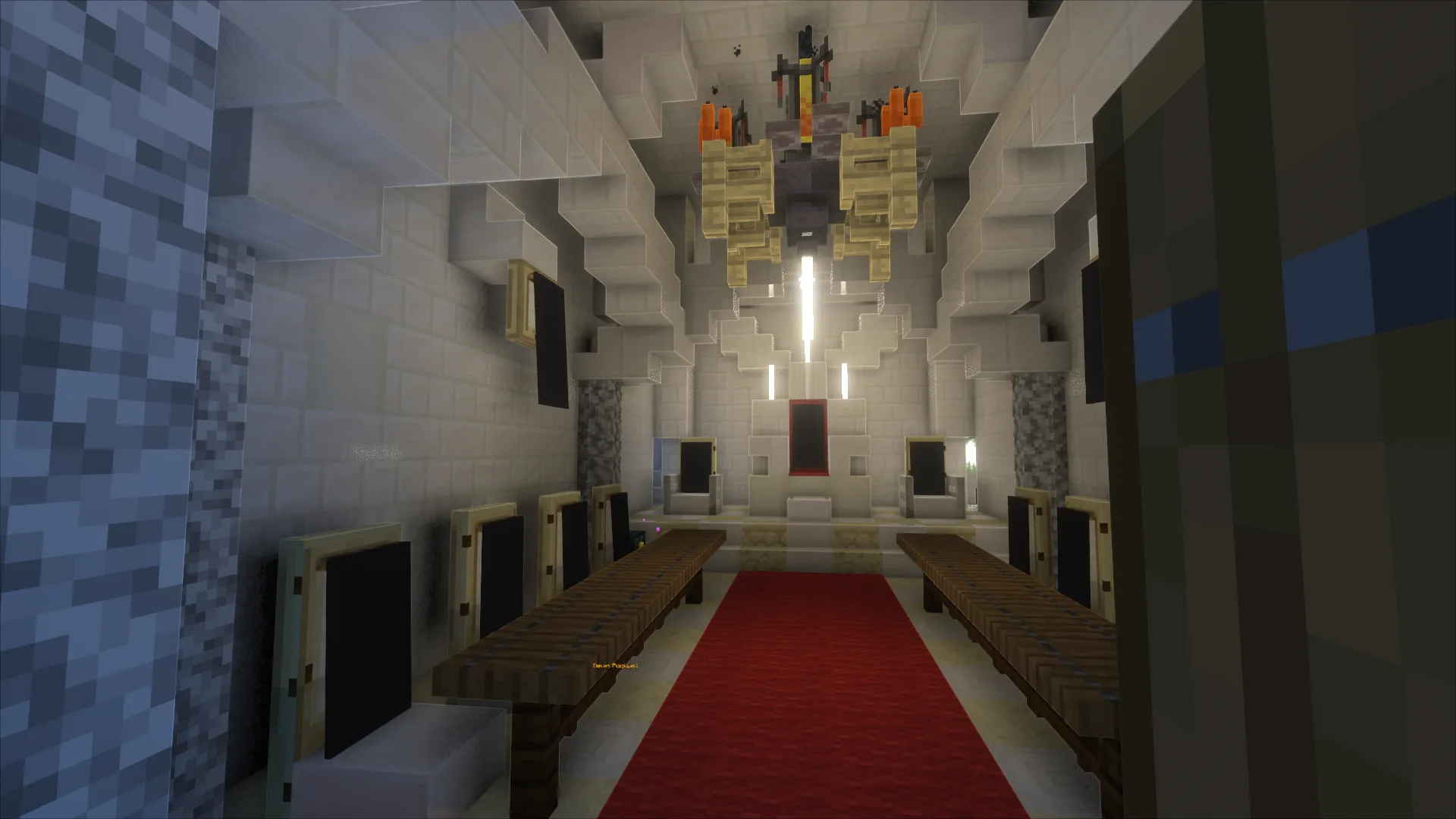
Capital Flight PermitsElytra flight is restricted inside the Capital unless you have an active permit; normal Elytra flight outside the restricted area continues normally.
How to start
- Use the Vaultcraft Flight Instructor/current permit interface inside the Capital.
- Review the permit duration/takeoff terms shown before purchasing.
- Planned Standard: 100 diamonds and five flights; planned VIP: 1,000 diamonds and up to one hour. Confirm actual availability in the live interface before purchase.
Good to know
- Flight restriction logic is designed to detect real landing rather than ordinary Elytra/chestplate swaps.
- Current permit options shown in game are authoritative if more than one option is available.
If something goes wrong
If an active permit is not recognized, land safely, capture the permit/status display, and open Help.
Related
Golden GraceEnchanted Golden Apples receive additional Vaultcraft effects on top of their normal Minecraft behavior.
How to start
- Use an enchanted golden apple normally when you actually need its effects.
Good to know
- Current intended bonuses include Saturation I for 10s; Speed II, Haste II, and Water Breathing for 2m30s; Strength V for 10s with Strength X during the final 3s; and a one-time cleanse of Poison, Wither, Weakness, Slowness, and Mining Fatigue.
- The item is intentionally powerful and rare.
If something goes wrong
If the custom effects fail to apply, record which effects were missing and whether the normal enchanted-golden-apple effects worked.
Custom InterfacesVaultcraft prefers clickable menus/dialogs for major features so players do not have to memorize a command tree.
How to start
- Use the player-facing menu offered by the relevant system.
- Use documented fallback interactions only when the menu is unavailable.
Good to know
- The server remains authoritative; an interface is only a front end to the actual Vaultcraft system.
If something goes wrong
If a button visibly exists but does nothing, report the exact menu/page/button rather than repeatedly clicking it.
Optional Vaultcraft ClientThe Vaultcraft client companion is optional for joining Minecraft, but Vaultcraft-exclusive systems and native custom menus require it.
How to start
- Connect normally with Java Edition if you only want to visit.
- Open /client to check whether a client release is currently published and which Minecraft version it supports.
Good to know
- Authoritative server logic and secrets stay server-side.
- The client is not required for basic connection but is required for the unique Vaultcraft systems and native screens.
- Only download the client from /client. If no release is published there, there is no official build to install yet.
If something goes wrong
If a custom menu will not open, verify the active version on /client and contact Help.
Collectibles and extras
Paintings, Mini Blocks, heads, displays, pets, and Lucky Blocks.
Custom PaintingsVaultcraft includes server-themed artwork that can bring community history and culture into player builds.
How to start
- Discover available paintings through supported in-game content and use them as normal decoration where permitted.
Good to know
- The artwork is part of Vaultcraft's visual identity and permanent-world history.
If something goes wrong
Report missing textures or incorrect artwork with a screenshot.
Mini BlocksMini Blocks provide additional decorative and collectible options for detailed builds.
How to start
- Use them where you want smaller-scale decorative details.
Good to know
- They are optional extras, not progression requirements.
If something goes wrong
If placement/display behaves incorrectly, report the exact Mini Block type.
Mob HeadsMob Heads add creature-themed collecting and decoration to the normal survival experience.
How to start
- Collect them naturally through supported gameplay and use them for display/collections.
Good to know
- Not every head has the same acquisition rules.
If something goes wrong
Use the current item name/lore when reporting a missing or incorrect head.
Armor StatuesArmor/display tools give builders more ways to stage equipment, scenes, interiors, and decorative displays.
How to start
- Use the supported display interface on your own builds/items.
Good to know
- These tools are decorative and should not be used to interfere with other players' builds.
If something goes wrong
If a display becomes stuck or loses equipment, preserve the area and report it before breaking everything around it.
PetsVaultcraft expands parts of the pet experience with additional quality-of-life or customization where supported.
How to start
- Use normal Minecraft pet ownership first; Vaultcraft enhancements appear where supported.
Good to know
- Pet features are additions to survival, not a separate required progression path.
If something goes wrong
Report pet-state issues with the animal type, name, location, and what changed.
Lucky BlocksLucky Blocks can appear in supported Vaultcraft content and Events with intentionally unpredictable outcomes.
How to start
- Use them only where the active content/event expects them.
Good to know
- Unpredictability is part of the mechanic; event-specific rules still apply.
If something goes wrong
Report outcomes that leave permanent broken event/world state, not simply an unlucky result.
Community
Rules, Discord, voting, world stories, Meridian, Help and reporting.
VotingVoting helps new players discover Vaultcraft while the website tracks supported vote sites, verified progress, streaks, and milestones.
How to start
- Open /vote.
- Use the listed vote sites instead of searching the web manually.
- Return to /vote to see what Meridian has verified.
Good to know
- Site cooldowns and verification can differ by provider.
- Voting can contribute to rewards/player history without being required to play.
If something goes wrong
If you voted but a site remains unverified, wait for the provider callback and use Help if it still does not update.
Related
RulesRead the full Rules page, especially before building close to others, modifying public infrastructure, automating large farms, trading at scale, or using unusual client modifications.
How to start
- Read /rules before your first major project.
- When in doubt, ask before doing something that affects other players.
Good to know
- You do not need to memorize a legal document before playing, but you are responsible for the rules that affect what you do.
If something goes wrong
For a rules question or appeal, use Vaultcraft Help rather than arguing it out in public chat.
DiscordDiscord is Vaultcraft's main community space outside the game for announcements, conversation, projects, events, support, and coordination.
How to start
- Sign in with Discord on the website to connect your identity.
- Use the appropriate community channels for conversation and coordination.
Good to know
- Meridian also lives in Discord and can answer Vaultcraft questions when mentioned.
If something goes wrong
Account or moderation problems belong in Help rather than public channels.
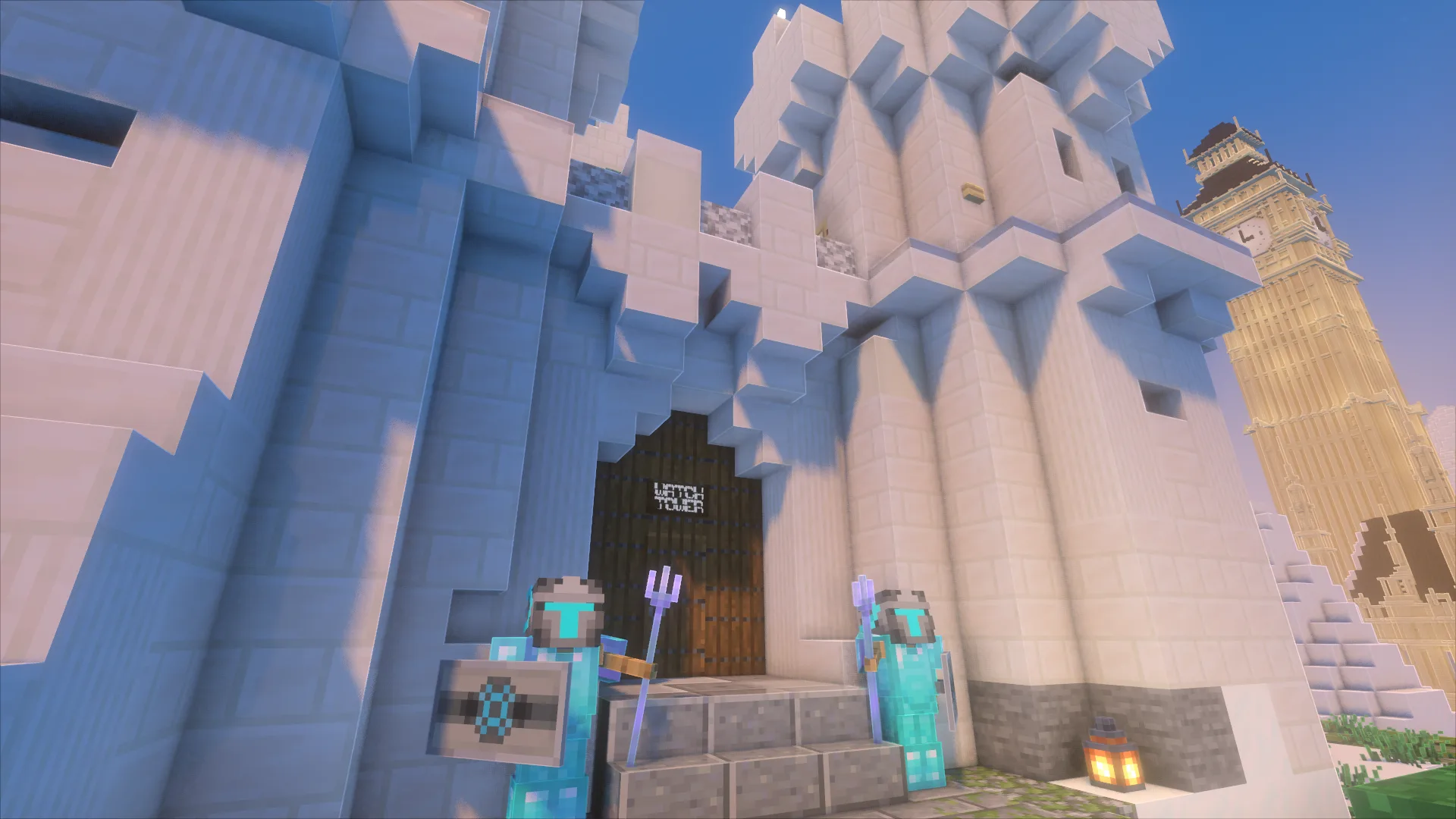
World StoriesVaultcraft's World and Map pages showcase current builds, towns, events and the history of the permanent world.
How to start
- Browse the World and Map pages.
- Use related World/Map links where available.
Good to know
- World stories are shown on the World and Map pages.
- The Media Manager controls current site imagery without overwriting its archive.
If something goes wrong
If an image or caption is wrong, report the archive entry so it can be corrected without deleting history.
Related
MeridianMeridian connects the player website, Discord, admissions, support, live server information, and other Vaultcraft tools.
How to start
- Use Search/Ask Meridian when you do not know where a feature lives.
- Use My Vaultcraft for your player account and Vaultcraft Help for problems.
Good to know
- Players should not need to know which internal subsystem handles a request.
- Meridian AI answers are informational/read-only; deterministic authorized systems handle real actions.
If something goes wrong
If Meridian gives an answer that conflicts with a live Vaultcraft interface, treat the live state as authoritative and report the mismatch.
Vaultcraft HelpThe player Help Center handles account problems, applications, technical issues, access, rules/safety reports, and broken systems without sending players into Meridian Control.
How to start
- Open /help and sign in.
- Choose the closest category.
- Explain what you did, what you expected, what happened, and attach screenshots when useful.
Good to know
- You do not need to diagnose the bug yourself.
If something goes wrong
Never include passwords, private authentication tokens, or one-time verification codes in a ticket.
Related
Reporting ProblemsReport griefing, theft, harassment, exploits, account problems, suspicious behavior, or major bugs with enough context for Vaultcraft to investigate.
How to start
- Use Vaultcraft Help.
- Include location/time/player/system information when relevant.
- Attach screenshots or exact error text when useful.
Good to know
- Serious problems are easier to resolve from clear evidence than from public arguments.
If something goes wrong
If the issue is actively dangerous to the server, report it promptly and avoid spreading exploit instructions publicly.
Commands
Vaultcraft prefers clickable menus. These are the few commands worth knowing.
/verify <code>@Meridian your questionMenus firstCharm reference
A historical list of documented Charms, not a complete or current one. The Satchel in game shows what is available now, with rarity, upgrades and effects. New entries are added here only after they are checked against a server release.
There is no single right way to play Vaultcraft.
Build something enormous. Run a shop. Collect every Charm, or ignore the economy entirely. Start a town, work on public infrastructure, or spend six months perfecting one building.